Native macOS · 2.5 MB · Free and open source原生 macOS · 2.5 MB · 免费开源

A mind map for your Claude and ChatGPT chats.给 Claude 和 ChatGPT 对话的思维导图。

Kikumap lives in your Mac's menu bar and keeps track of your Claude and ChatGPT chats: what's running, what's done, what needs your OK. Open it, and your pinned chats become a map you arrange yourself. A desktop widget shows it all at a glance, with your usage.

Kikumap 住在 Mac 的菜单栏里,帮你盯着 Claude 和 ChatGPT 的对话:哪个在跑、哪个做完了、哪个在等你批准。打开它,置顶对话就是一张由你自己整理的导图。桌面小组件也能一眼看到这些,还有用量。

macOS 13 or later · Apple silicon and Intel · betamacOS 13 及以上 · Apple 芯片和 Intel 都支持 · 测试版

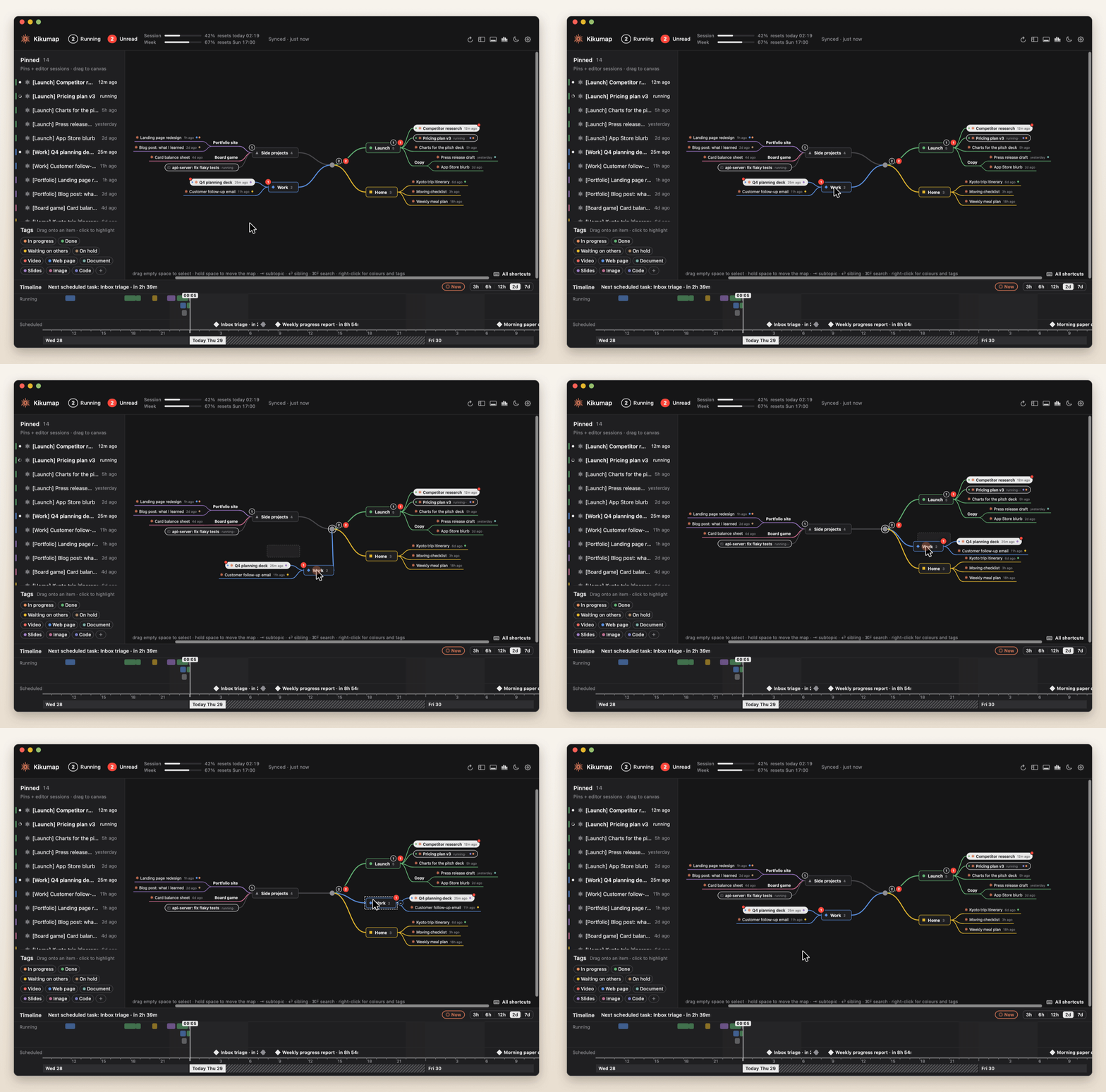
Dragging the Work topic across the map: it follows the pointer on a live branch, the other topics slide apart to make room, and it lands where the gap was

The 2-minute tour两分钟看懂

Narrated, with captions and music. It plays muted until you turn the sound on.

英文配音,带字幕和背景音乐。默认静音播放,点按钮打开声音。

Menu bar菜单栏

Know what Claude and ChatGPT are doing随时知道 Claude 和 ChatGPT 在干什么

One icon in the menu bar. The orange flower spins while a chat is running. A red badge counts chats that finished and you haven't read, with ! when one needs your approval.

Hear it instead of checking: a sound plays when a chat finishes or needs you, and Kikumap can then say which one ("Pricing plan is done") in the voice, speed and words you choose. Or use your own sound file.

菜单栏只有一个图标。橙色小菊花在转,就是有对话在跑;红色数字是做完了还没看的对话,带 ! 表示有对话在等你批准。

听声音就知道:对话做完或在等你时会响提示音,还可以接着念出是哪个对话(“定价方案做完了”),声音、语速、念的内容都能自己改,也可以换成自己的声音文件。

Works with the Claude desktop app, with Claude Code (Terminal, VS Code, the app's Code mode) and, new in 0.9.5, with the ChatGPT desktop app: everything you pin there shows next to Claude's chats, marked GPT, in ChatGPT's order. Nothing to set up for ChatGPT.

支持 Claude 桌面 App、Claude Code(终端、VS Code、App 的 Code 模式),以及 0.9.5 新增的 ChatGPT 桌面 App:你在 ChatGPT 里置顶的东西都会和 Claude 的对话放在一起,前面标着 GPT,顺序和 ChatGPT 一样。ChatGPT 这边不用任何设置。
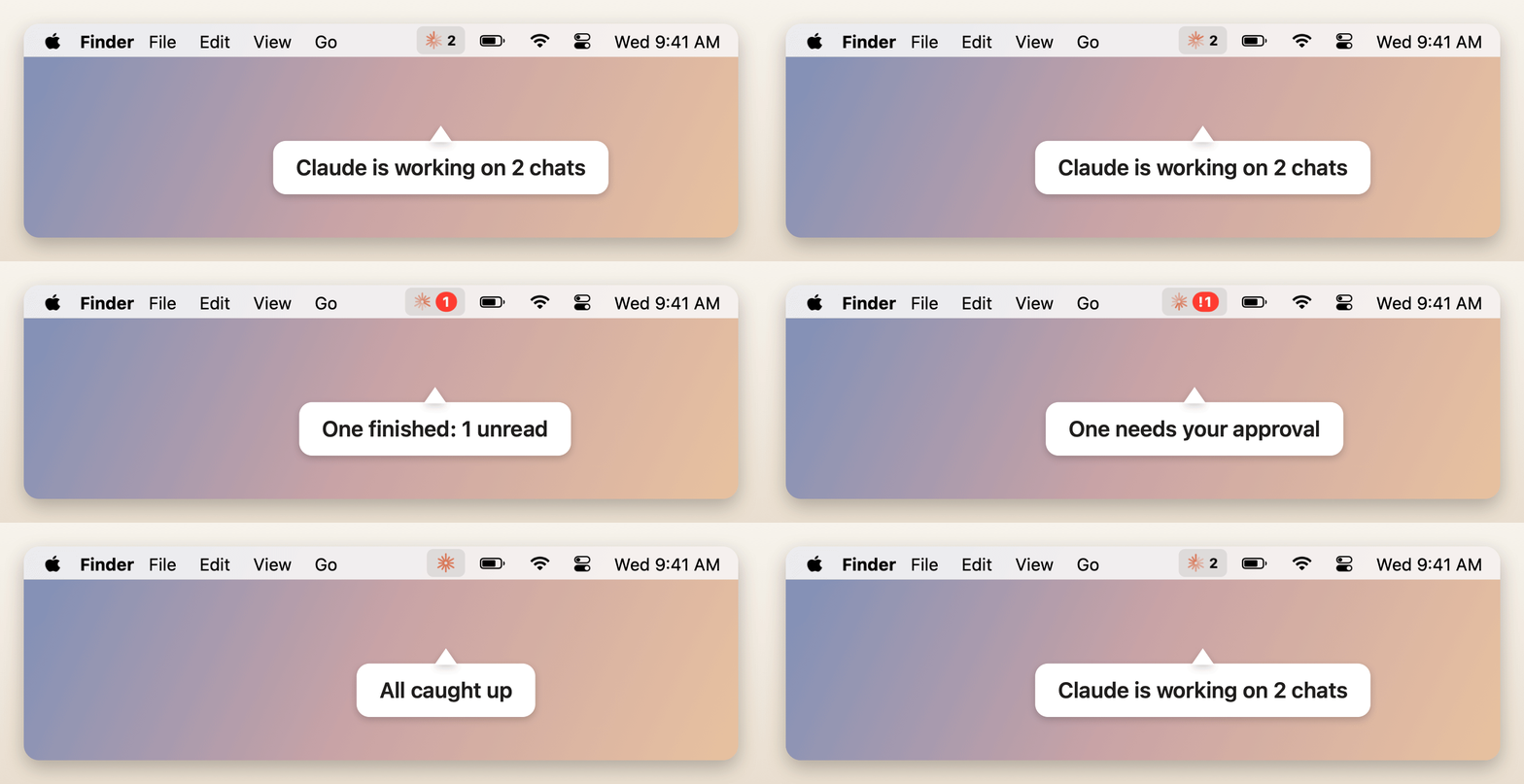
The menu-bar icon spinning while Claude works, then showing a red unread badge, then an exclamation mark when a chat needs approval

Mind map导图

Your chats, as a map对话变成一张导图

The left column mirrors the chats you pinned in Claude and ChatGPT, in each app's order, and your Claude Code sessions. The map starts empty: nothing goes on it until you put it there. Drag them onto your own topics: the item rides a live branch and the rest of the map slides aside to show where it will land. The map never rearranges itself on its own.

左栏是你在 Claude 和 ChatGPT 里置顶的对话,顺序和各自的 App 一样,还有你的 Claude Code 会话。导图一开始是空的,放什么由你决定。把它们拖到自己的主题下:拖动时节点带着实时连线跟着走,其他节点会让开,空出它要落下的位置。你不动,布局就不会自己变。

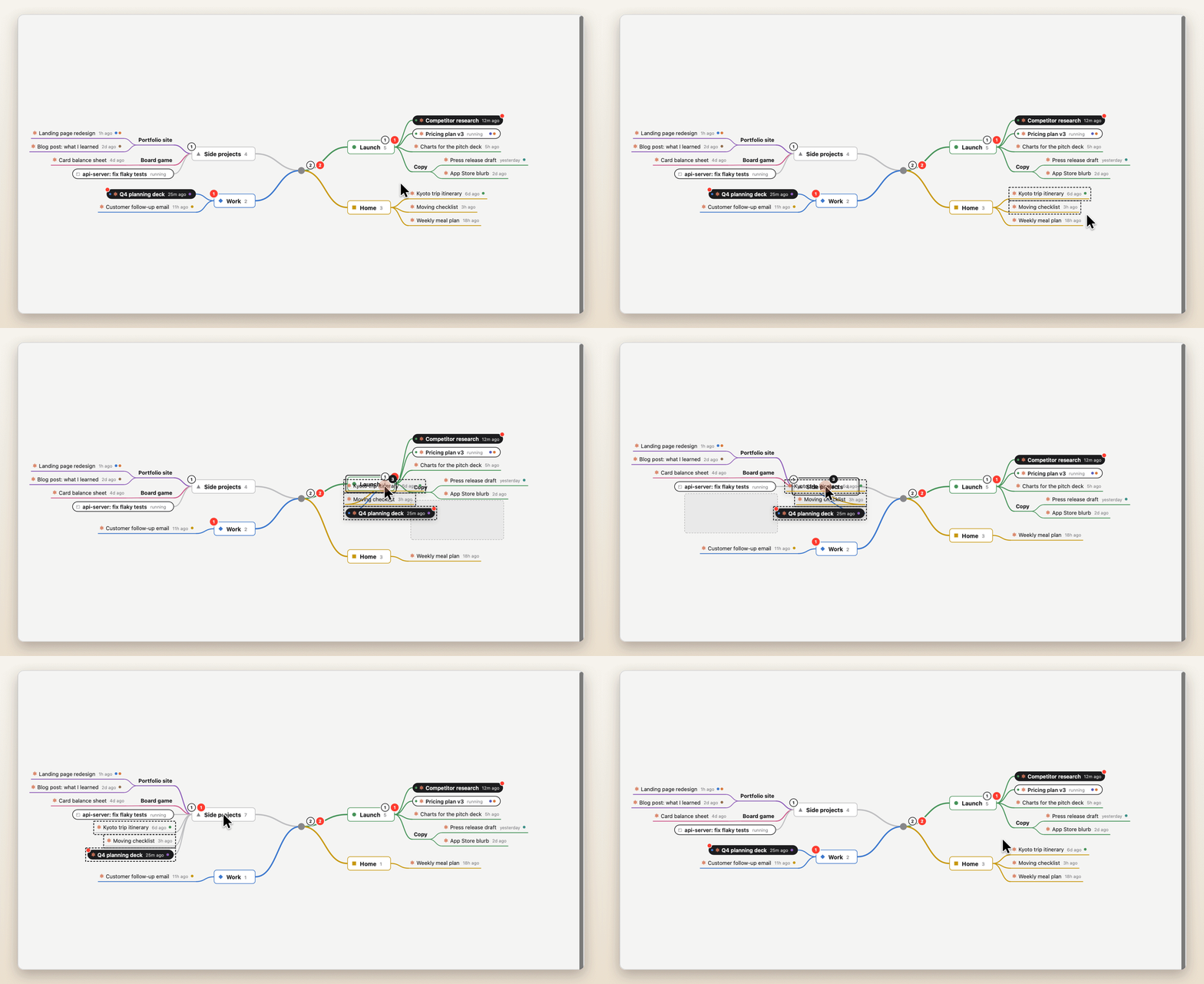
Several at once: drag a box on empty space (or ⌘/⇧-click), or ⌘/⇧-click in the left column, then drag any one of them. They all come along, in order. Hold space and move the mouse, or swipe with two fingers, to move around. Hide or resize the left column and the timeline (⌃⌘S, ⌃⌘T), and make everything bigger with ⌘+.

一次拖好几个:在导图空白处拖出选框(或 ⌘/⇧ 点击),或在左栏 ⌘/⇧ 点击,然后拖其中任意一个,选中的会按顺序一起过去。按住空格移动鼠标、或双指滑动,就能移动导图。左栏和时间线可以隐藏(⌃⌘S、⌃⌘T)或拖边缘调宽,⌘+ 让整个窗口变大。

Real conversations carry a small orange mark. Hover one for two buttons: open it in Claude or ChatGPT, or mark it unread again (⇧⌘U) so it waits for you until you've opened it.

真正的对话前面有橙色小标记。鼠标停在上面会出现两个按钮:在 Claude 或 ChatGPT 里打开,或者标回未读(⇧⌘U),在你真正打开之前一直提醒你。

Dragging a box on empty space selects two chats under Home, Command-click adds the Q4 deck, and dragging one carries all three onto Side projects

Style样式

Make it yours按你的习惯整理

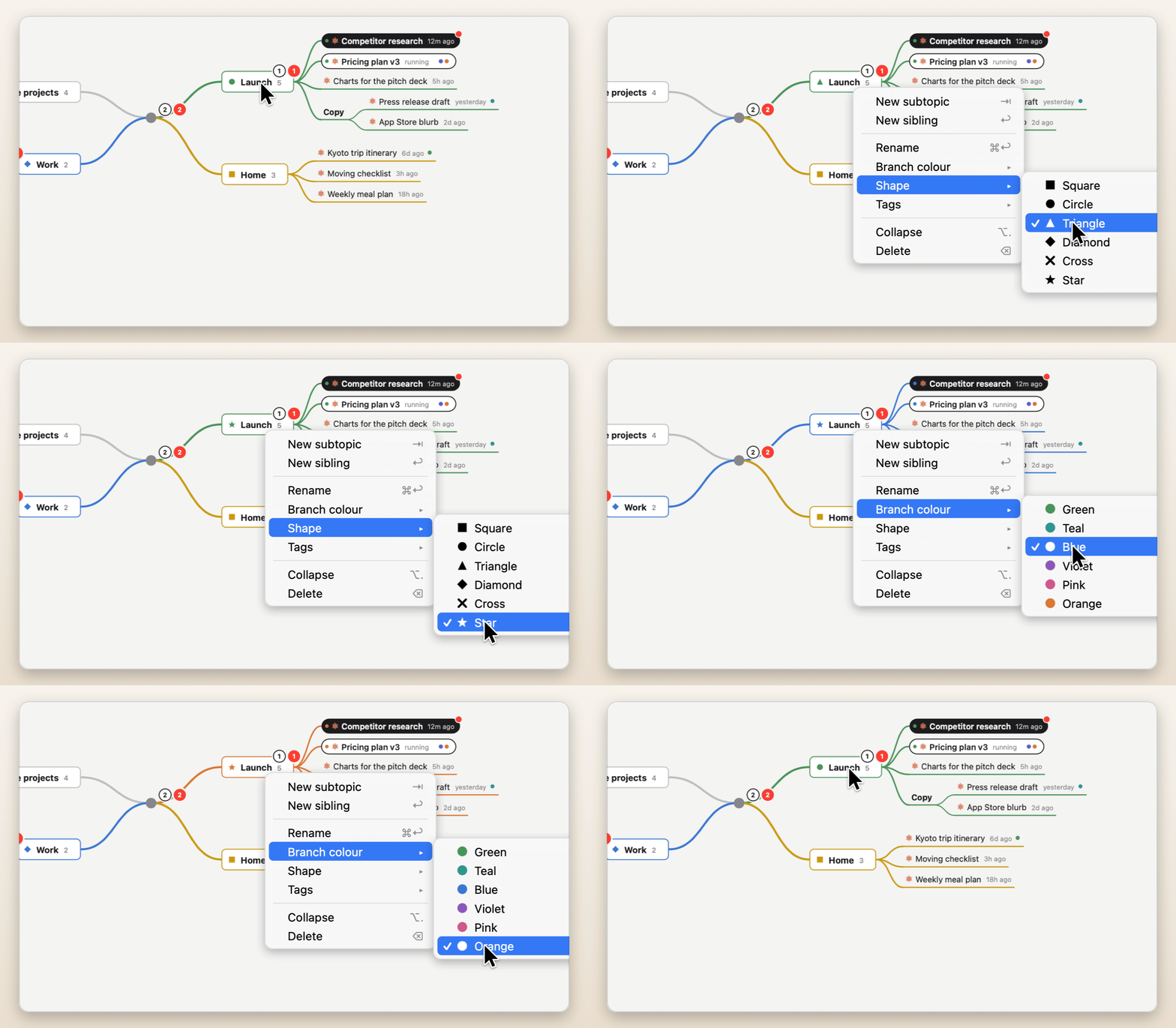
Right-click any topic for a branch colour and a shape: square, circle, triangle, diamond, cross or star. Colours flow down the branch, into the timeline and the menu.

右键任意主题,换分支颜色、选图形:方块、圆圈、三角、菱形、交叉、星星。颜色会顺着分支往下,时间线和菜单里也跟着用。

Right-clicking the Launch topic and stepping through shapes, then branch colours

Tags标签

Tag anything什么都能打标签

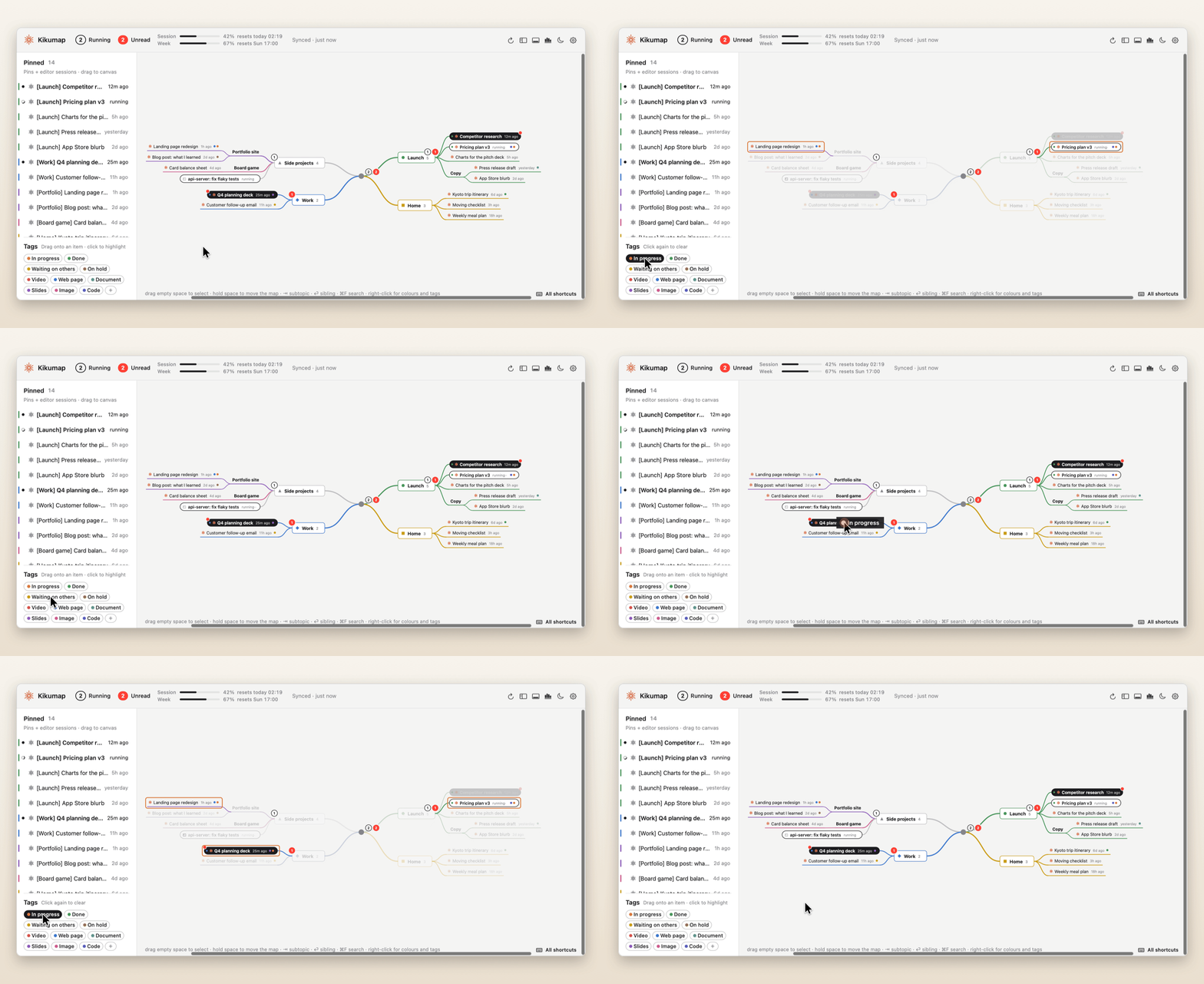
Tags like In progress, Waiting on others or Slides. Pick them from the right-click menu, or drag one from the shelf straight onto a chat.

比如「进行中」「等别人」「幻灯片」。右键菜单里勾选,或者从左下角的标签栏直接拖到对话上。

Click a tag to highlight everything that has it; the rest of the map fades back. Click again to clear.

点一下标签,带这个标签的都会高亮,其他的淡下去。再点一下取消。

Clicking the In progress tag highlights the chats that have it; then the tag is dragged onto the Q4 planning deck, and clicked again

Keyboard键盘

Keyboard-first键盘就能搞定

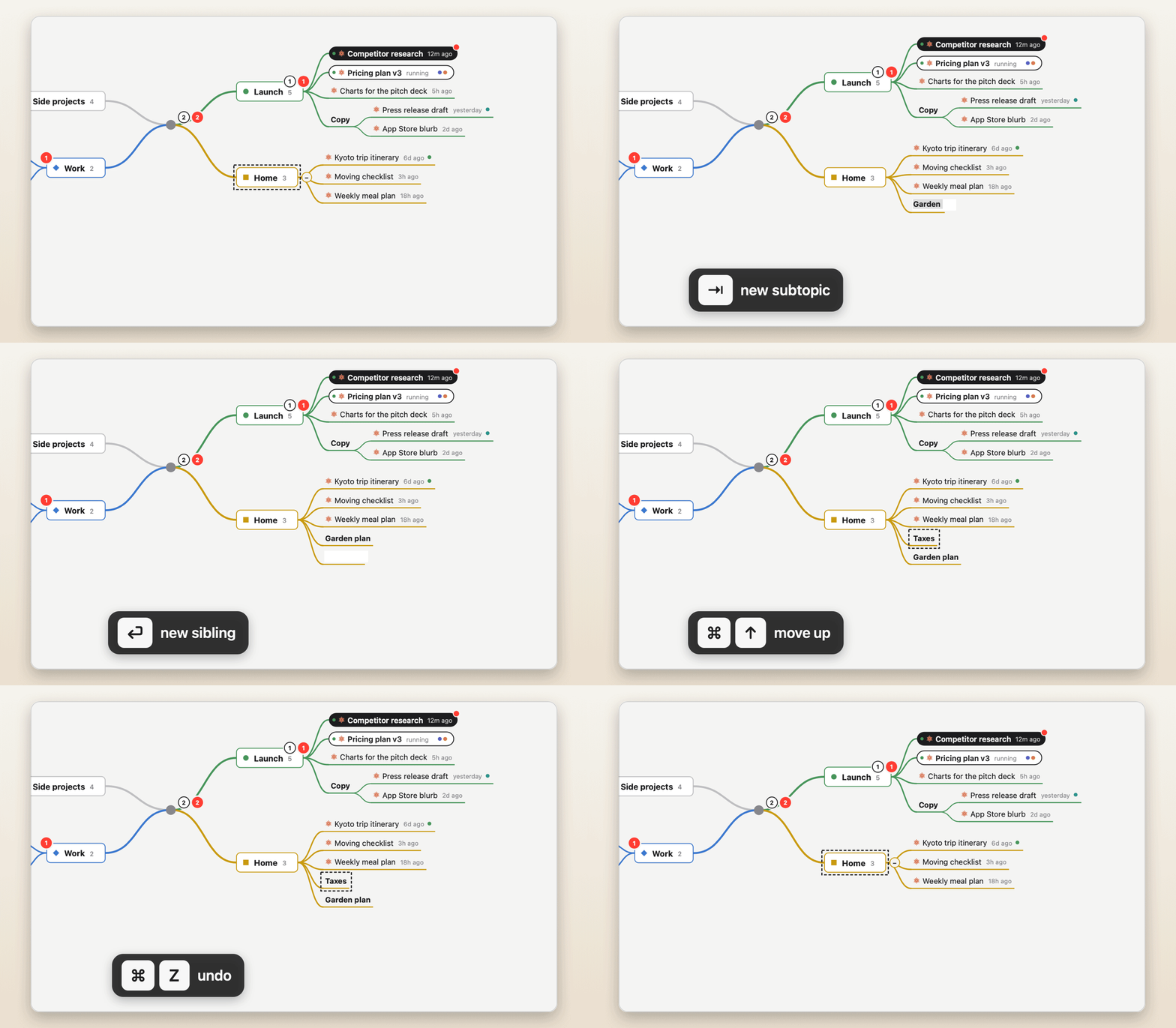
Like a real mind-map app: ⇥ new subtopic, ⏎ sibling, ⌘↑↓ reorder, ⌘Z undo.

和专业导图软件一样:⇥ 新建子主题,⏎ 同级主题,⌘↑↓ 调整顺序,⌘Z 撤销。

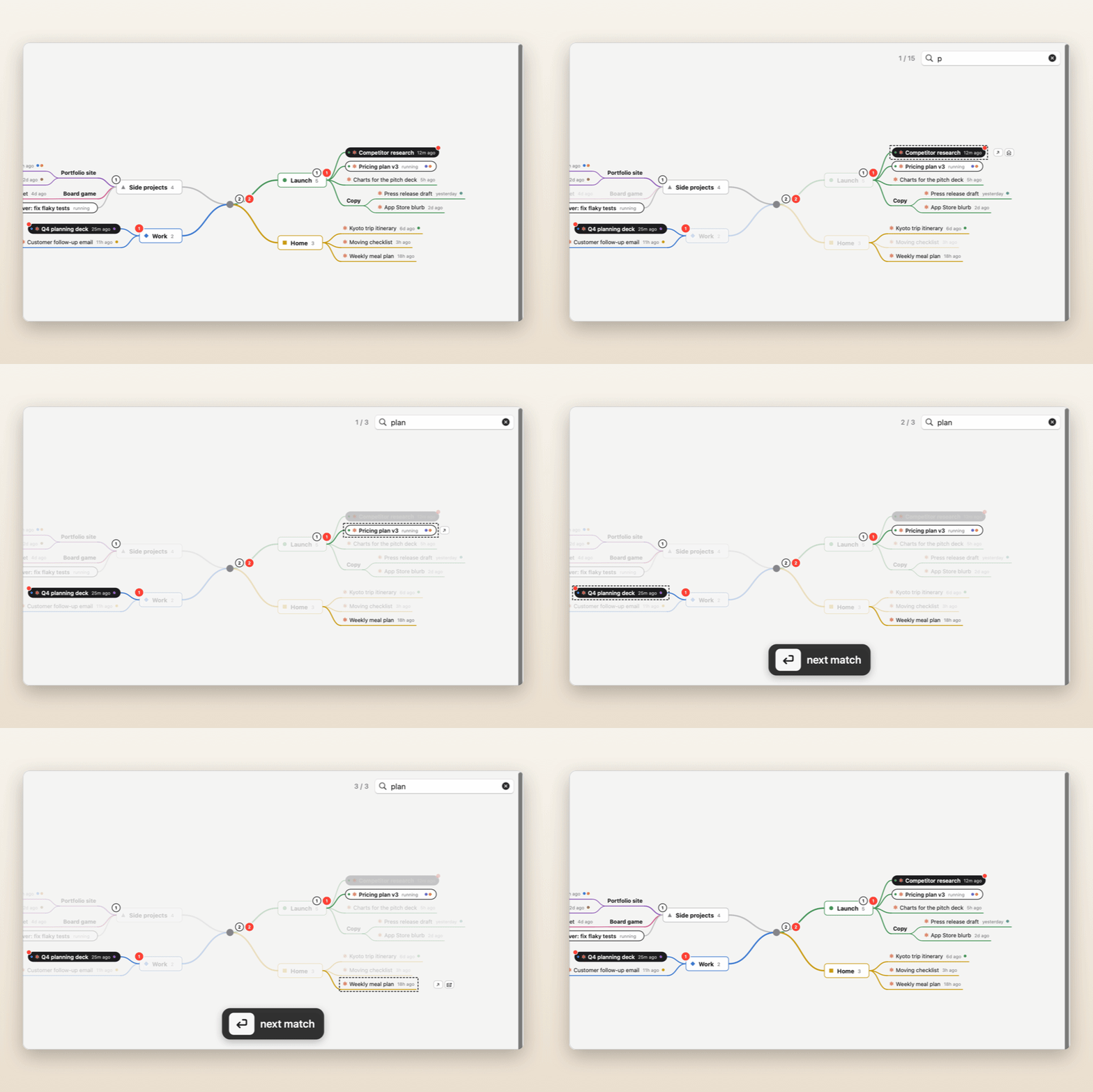
Also ⌫ delete, ⌥. fold, ⌘F search, and a tap on space to open a chat in its app.

还有 ⌫ 删除,⌥. 折叠,⌘F 搜索,轻按空格 在对应的 App 里打开对话。

Pressing Tab adds a subtopic under Home and typing names it, Return adds a sibling, Command-Up moves it, Command-Z undoes

Timeline时间线

What ran, and what's next做过什么,接下来做什么

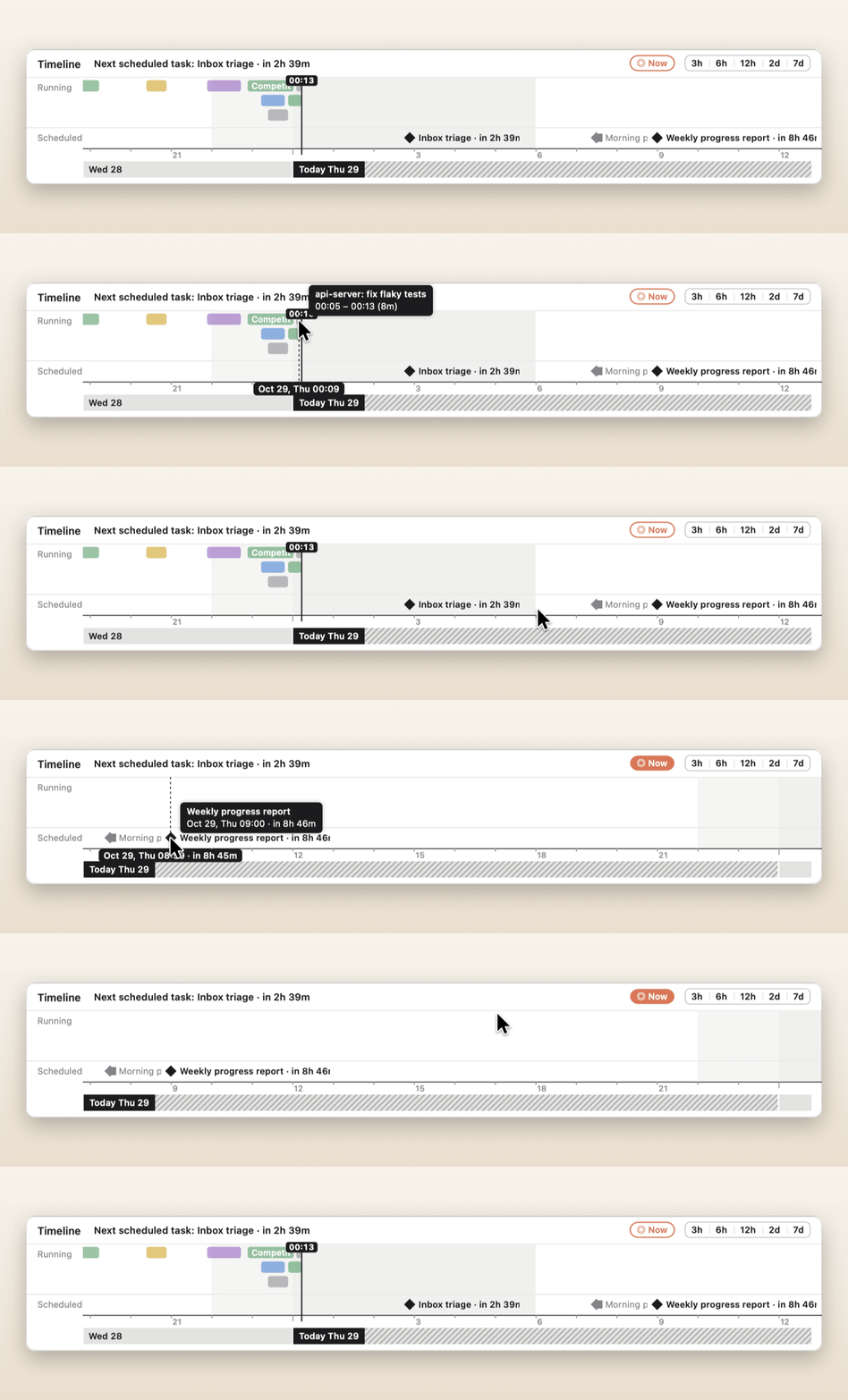
The strip at the bottom shows when Claude and ChatGPT worked on each chat, in your branch colours; chats running at the same time get rows of their own. Hover a run to see how long it took.

底部的时间线显示 Claude 和 ChatGPT 什么时候在做哪个对话,用你的分支颜色;同时在跑的对话各占一行。鼠标停在上面能看到用了多久。

Drag ahead to see what's coming: your scheduled tasks (with usage turned on), each with a live countdown. Click anything to open it.

往后拖,就能看到接下来要发生的事:每个计划任务(需开启用量)都带实时倒计时。点一下就能打开。

Hovering past runs on the timeline shows their times; dragging ahead reveals scheduled tasks with countdowns; Now jumps back

Export导出

Take everything with you全部带走

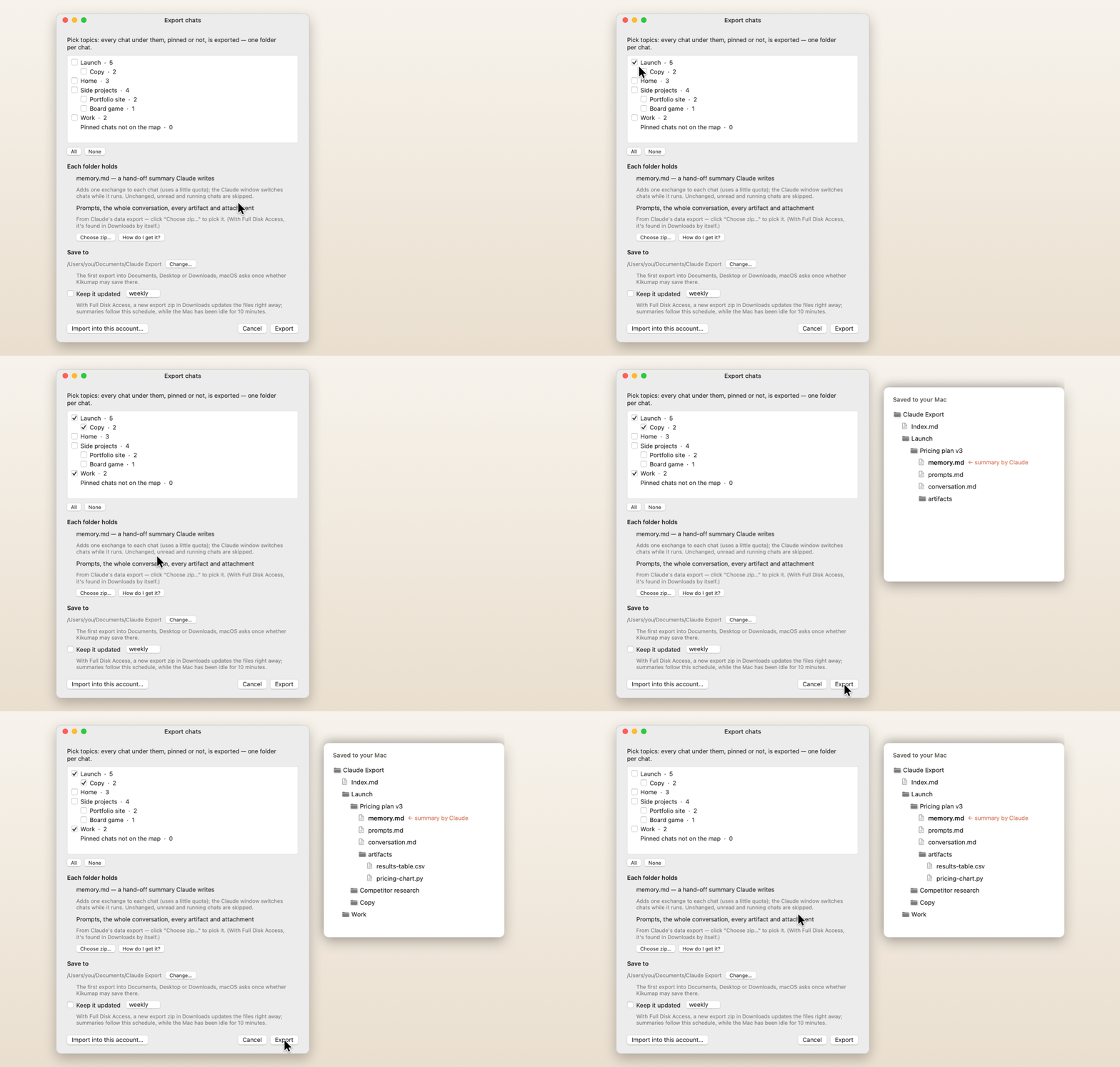
Tick topics and export every chat under them, pinned or not, one folder per chat:

勾选主题,下面所有对话(置顶的、没置顶的都算)一次导出,每个对话一个文件夹:

  • memory.md a hand-off summary Claude writes inside the chatClaude 在对话里写的交接总结
  • prompts.md · conversation.md
  • artifacts/ · attachments/

The export can keep itself up to date. Import starts a new pinned chat per folder, in a new Claude account for example, so you pick up where you left off.

导出可以自动保持最新。导入会为每个文件夹开一个新的置顶对话,比如换到新的 Claude 账号,也能接着做。

The export window: ticking Launch, Copy and Work, clicking Export, and the folder of Markdown files and artifacts that comes out

Widget · new小组件 · 新

On your desktop放在桌面上

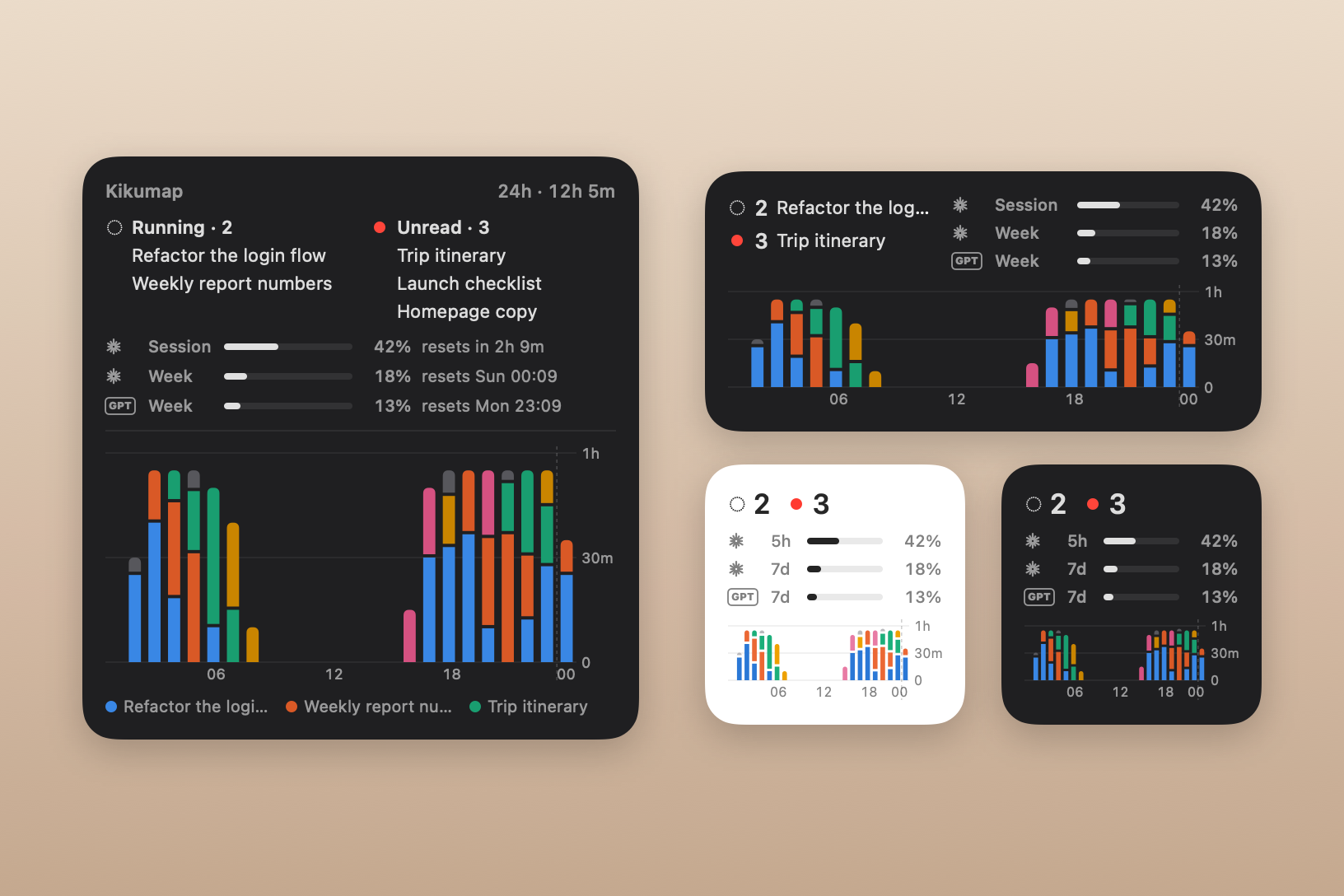
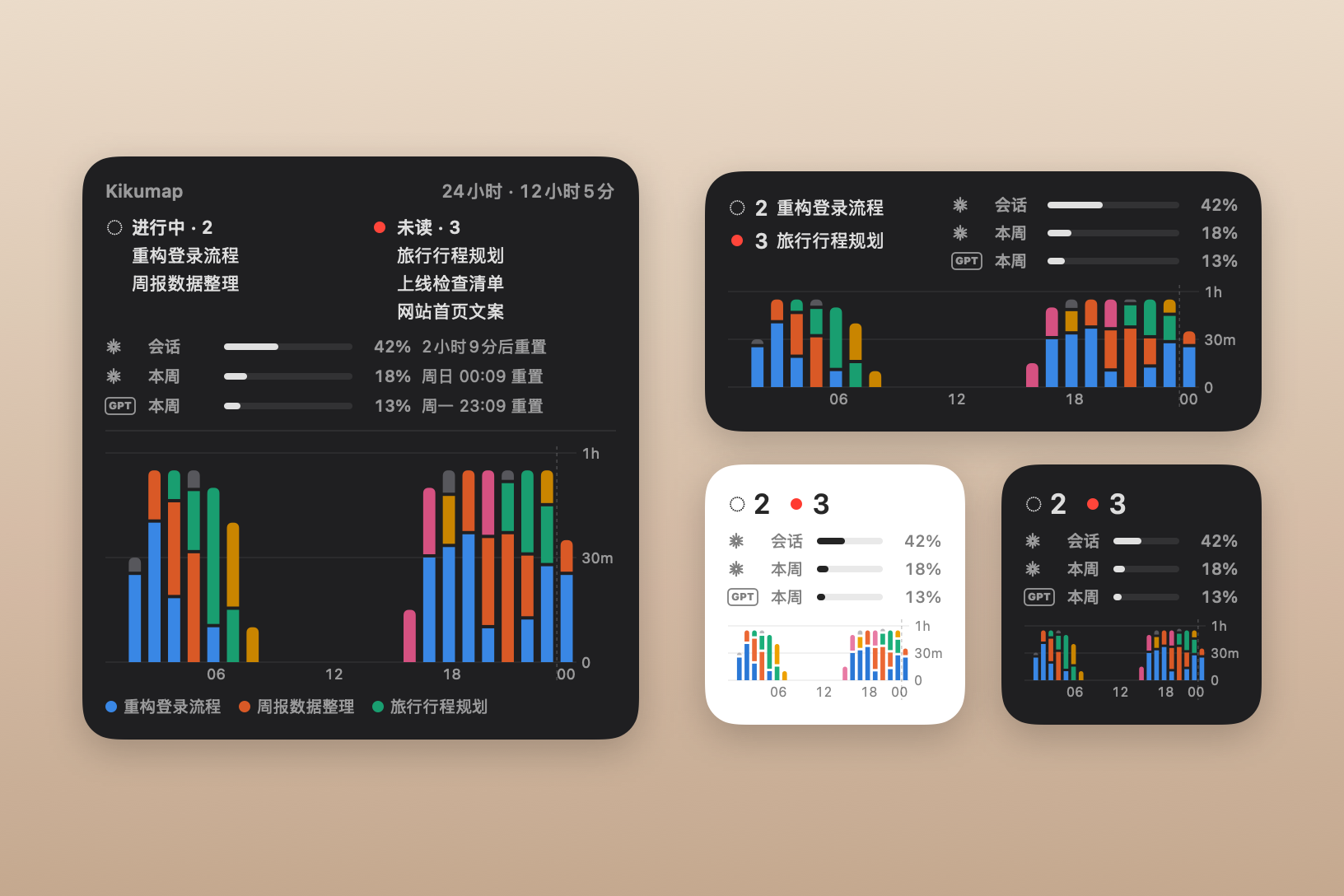
A widget for the desktop or Notification Center, in three sizes. Running and unread chats on top; then your usage, Claude's (the 5-hour session and the week), ChatGPT's, or both, each row marked with whose it is; and below, the last 24 hours as bars, a colour per chat. Click a chat to open it.

桌面或通知中心的小组件,小、中、大三种尺寸。上面是进行中和未读的对话;接着是用量:Claude 的(5 小时会话和本周)、ChatGPT 的,或两个都有,每一行都标着是谁的;下面是最近 24 小时的柱状图,每个对话一种颜色。点对话就能打开。

Right-click the desktop → Edit Widgets and search for Kikumap. macOS 14 or later.

在桌面右键 → 编辑小组件,搜 Kikumap。需要 macOS 14 或更新。

Four Kikumap widgets: large, medium and two small ones, each with running and unread chats, Claude's and ChatGPT's usage, and the last 24 hours as stacked bars四个 Kikumap 小组件:大、中和两个小的,都有进行中和未读的对话、Claude 和 ChatGPT 的用量,以及最近 24 小时的分段柱状图

Statistics · new统计 · 新

How much got done干了多少活

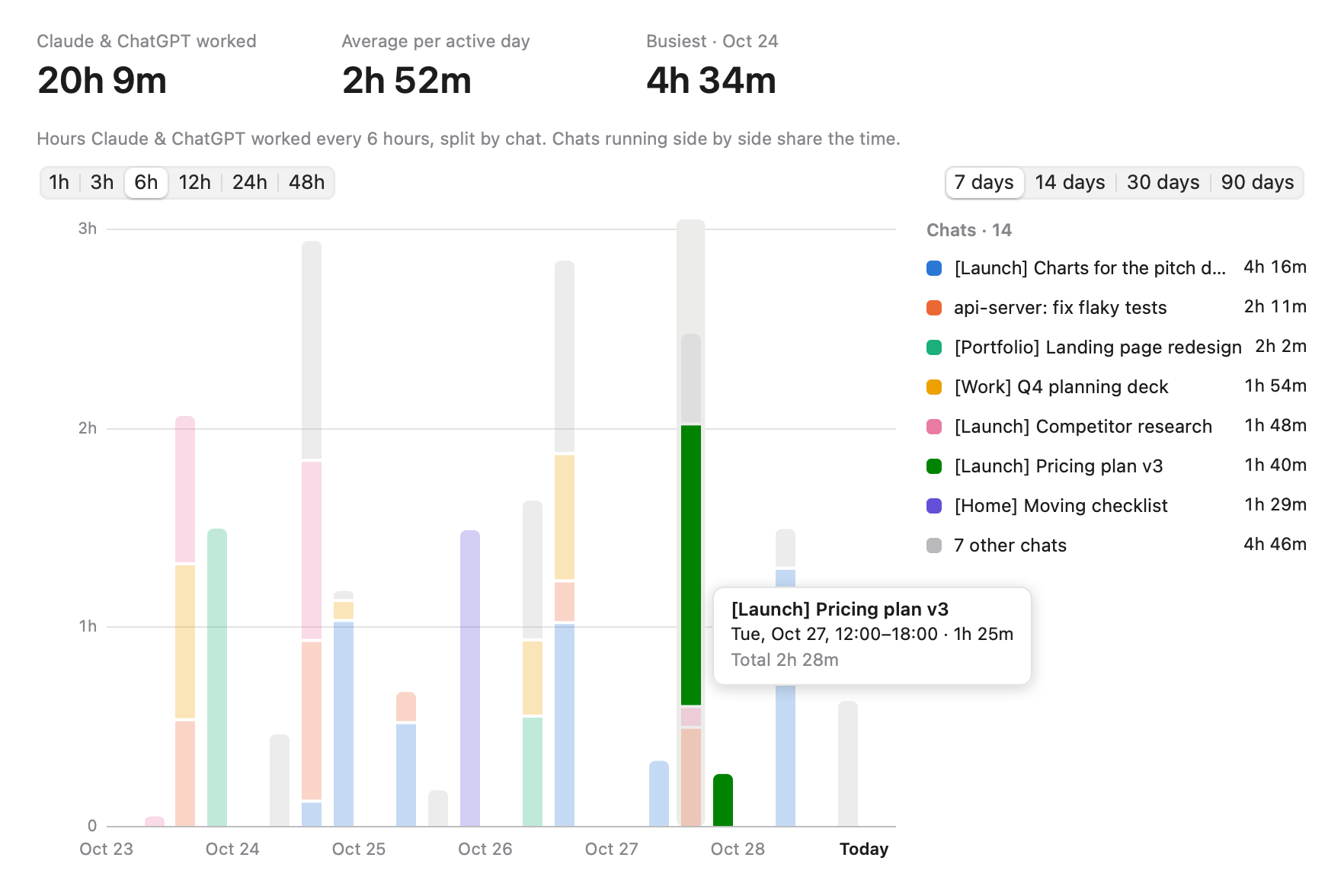
How long Claude and ChatGPT worked, split by chat, in bars of 1, 3, 6, 12, 24 or 48 hours over the last 7, 14, 30 or 90 days. Hover for the details, click a segment to open the chat.

Claude 和 ChatGPT 干了多久,按对话分段;每根柱子可以是 1、3、6、12、24 或 48 小时,看最近 7、14、30 或 90 天。鼠标停上去看详情,点一段就打开那个对话。

View → Statistics (⌘Y), or the chart button at the top of the window.

显示 → 统计(⌘Y),或窗口顶上的图表按钮。

Statistics: seven days in six-hour bars, a colour per chat, with totals, a legend and the bar-size and range controls

And a lot more还有更多

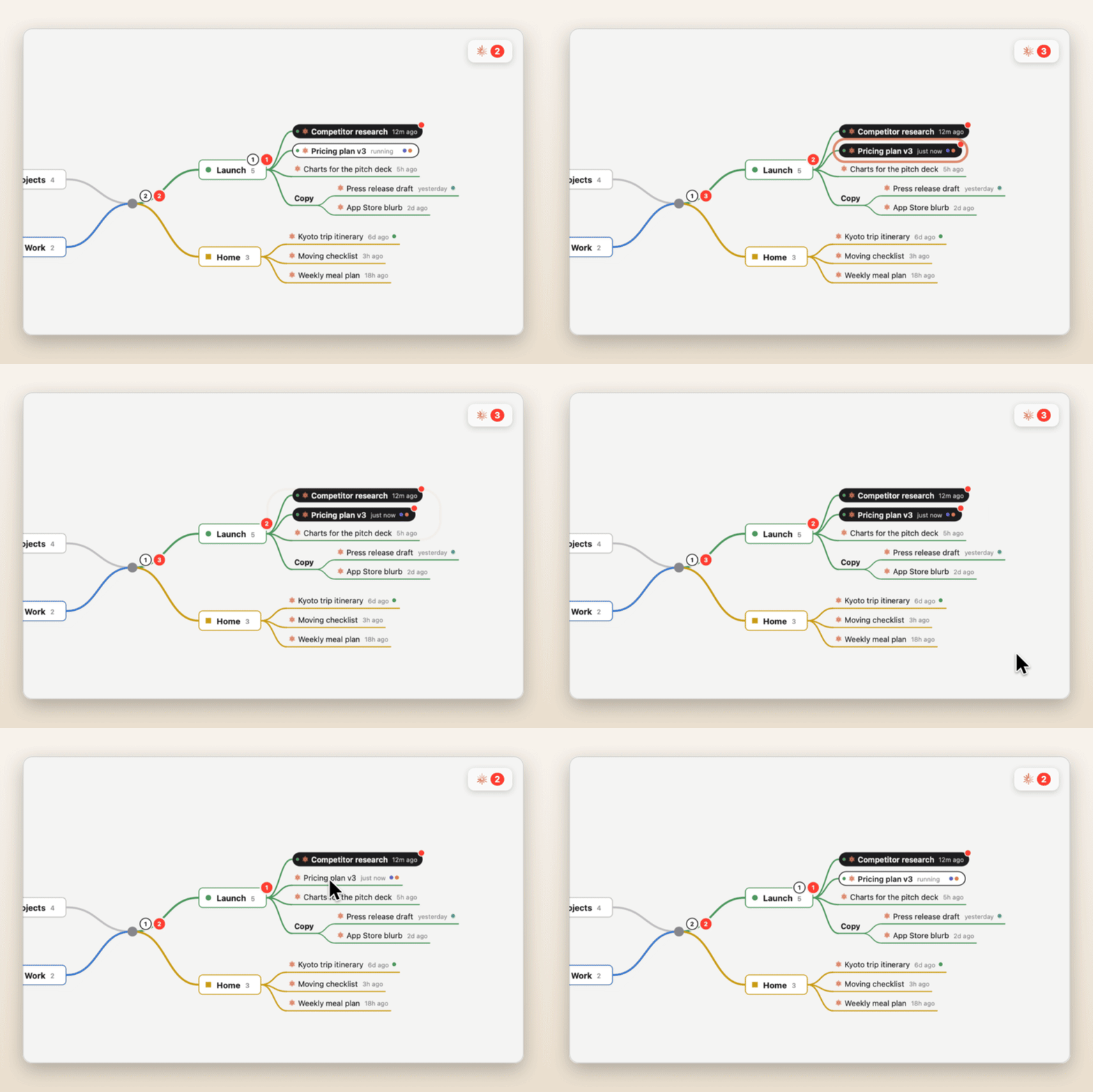
Finished chats light up做完的对话会亮A chat that's done but unread turns solid on the map, with a red dot.做完还没看的对话,在导图上变成实心,还带一个红点。
Find anything搜索⌘F searches topics, chats and tags; ⏎ jumps to the next match.⌘F 搜主题、对话和标签,⏎ 跳到下一个。
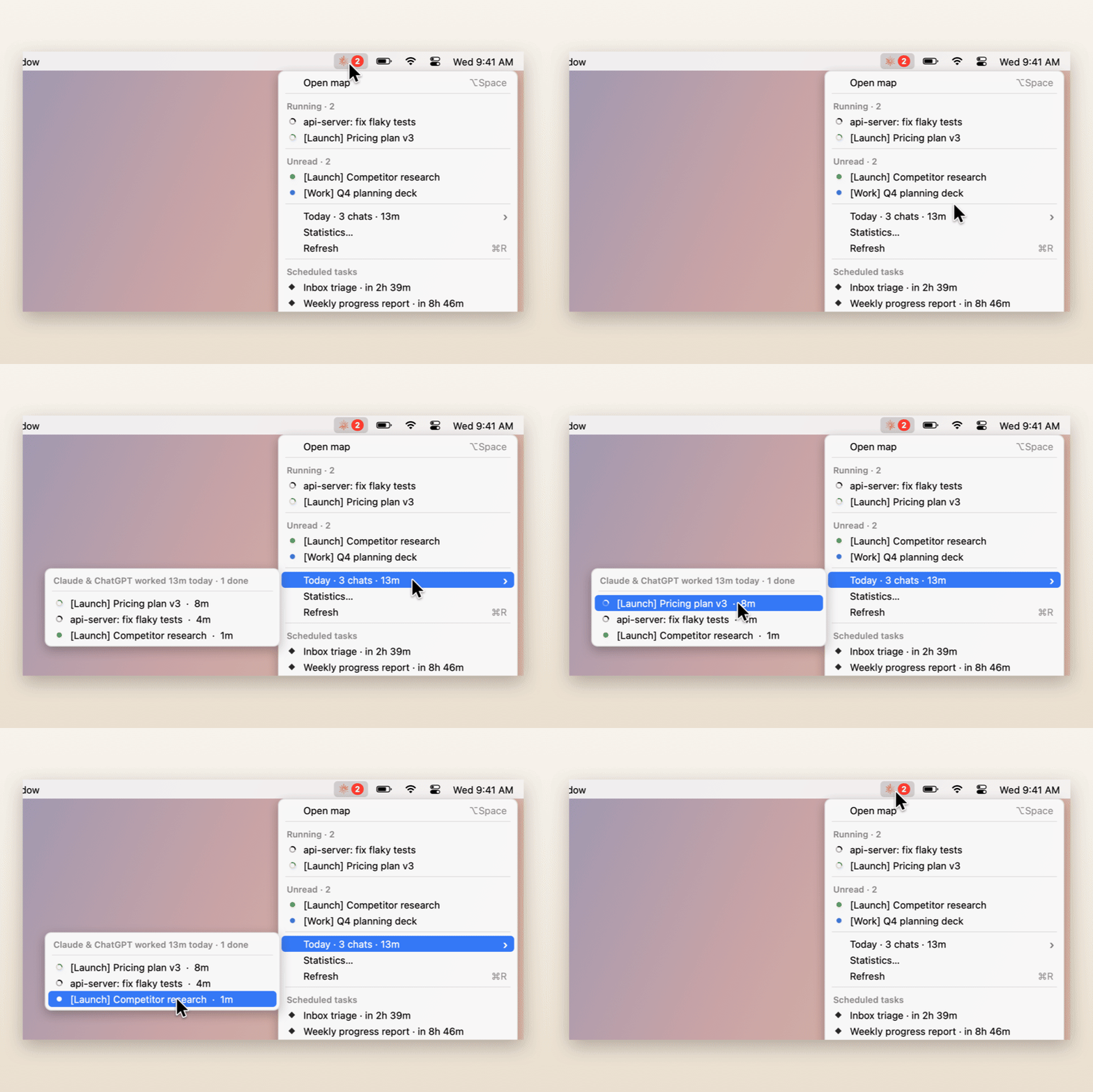
Your day at a glance今日回顾Which chats Claude and ChatGPT worked on today, and for how long, right in the menu.今天 Claude 和 ChatGPT 做了哪些对话、各用了多久,菜单里就能看。
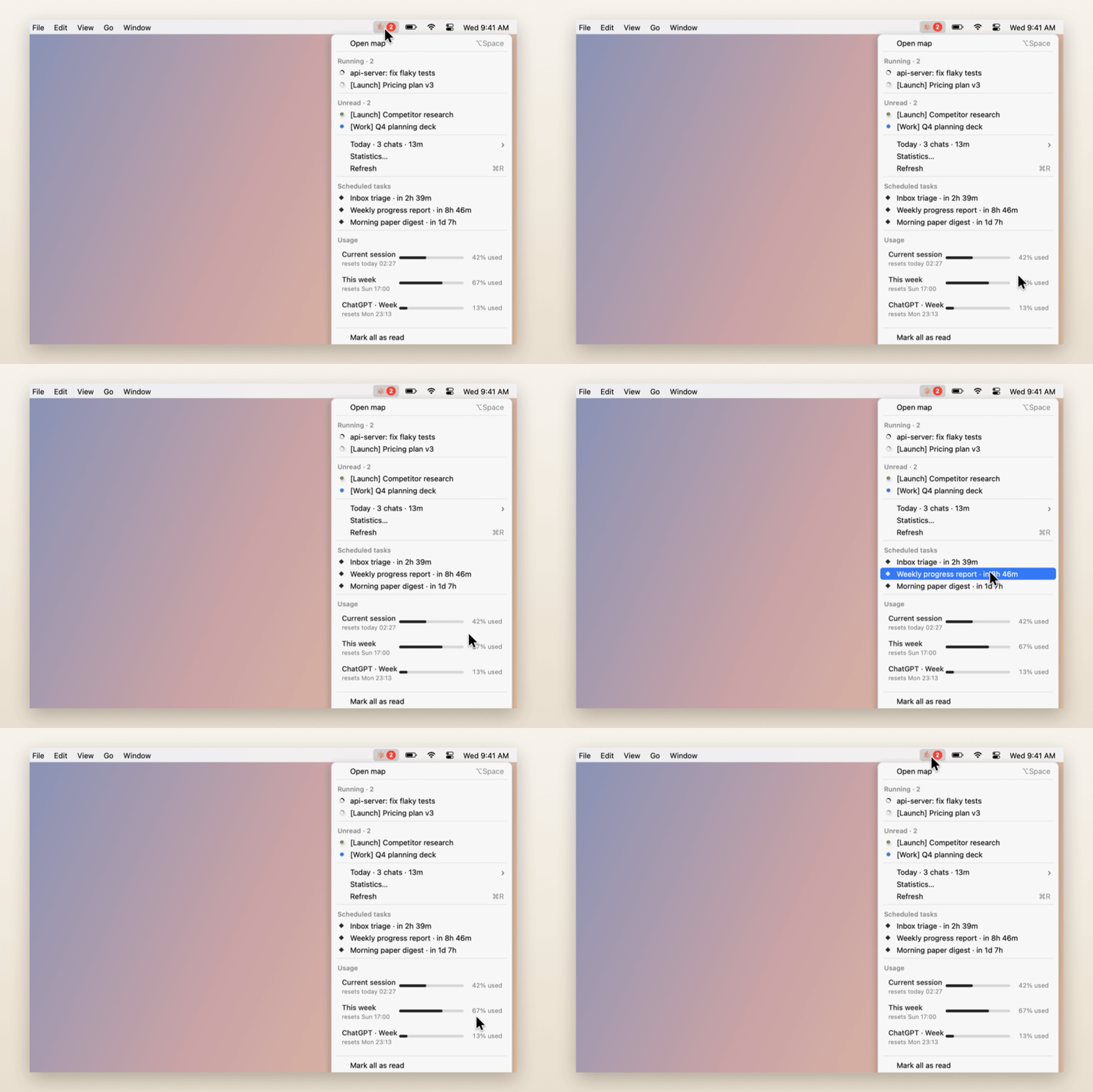
Usage in the menu用量This session and this week, like claude.ai, plus what's scheduled next.当前会话和本周用量,和 claude.ai 一样,还有接下来的计划任务。
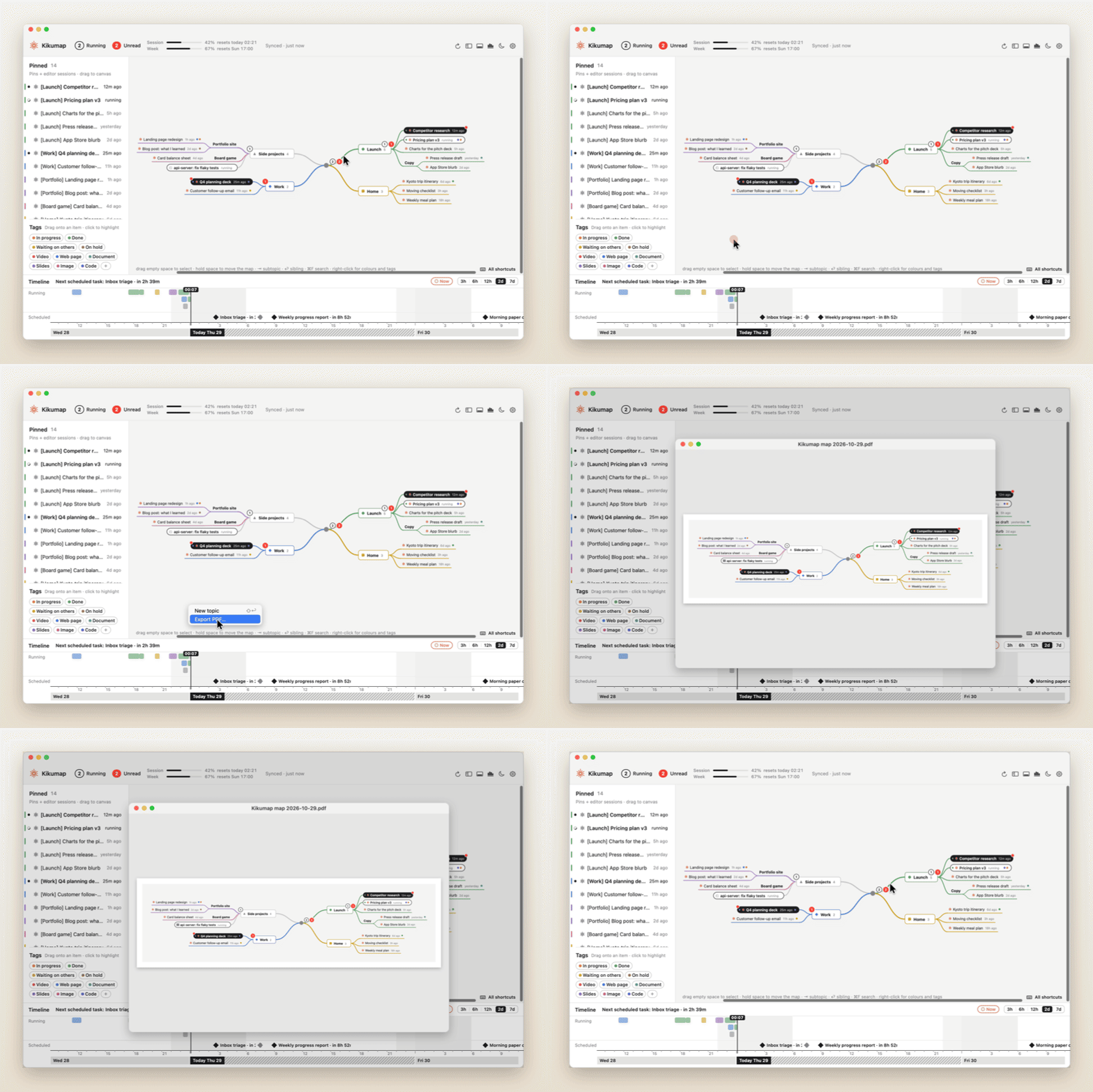
The map as a PDF导出 PDFThe whole map on one light page, ready to print or share.整张导图导出成一页浅色 PDF,打印、分享都行。
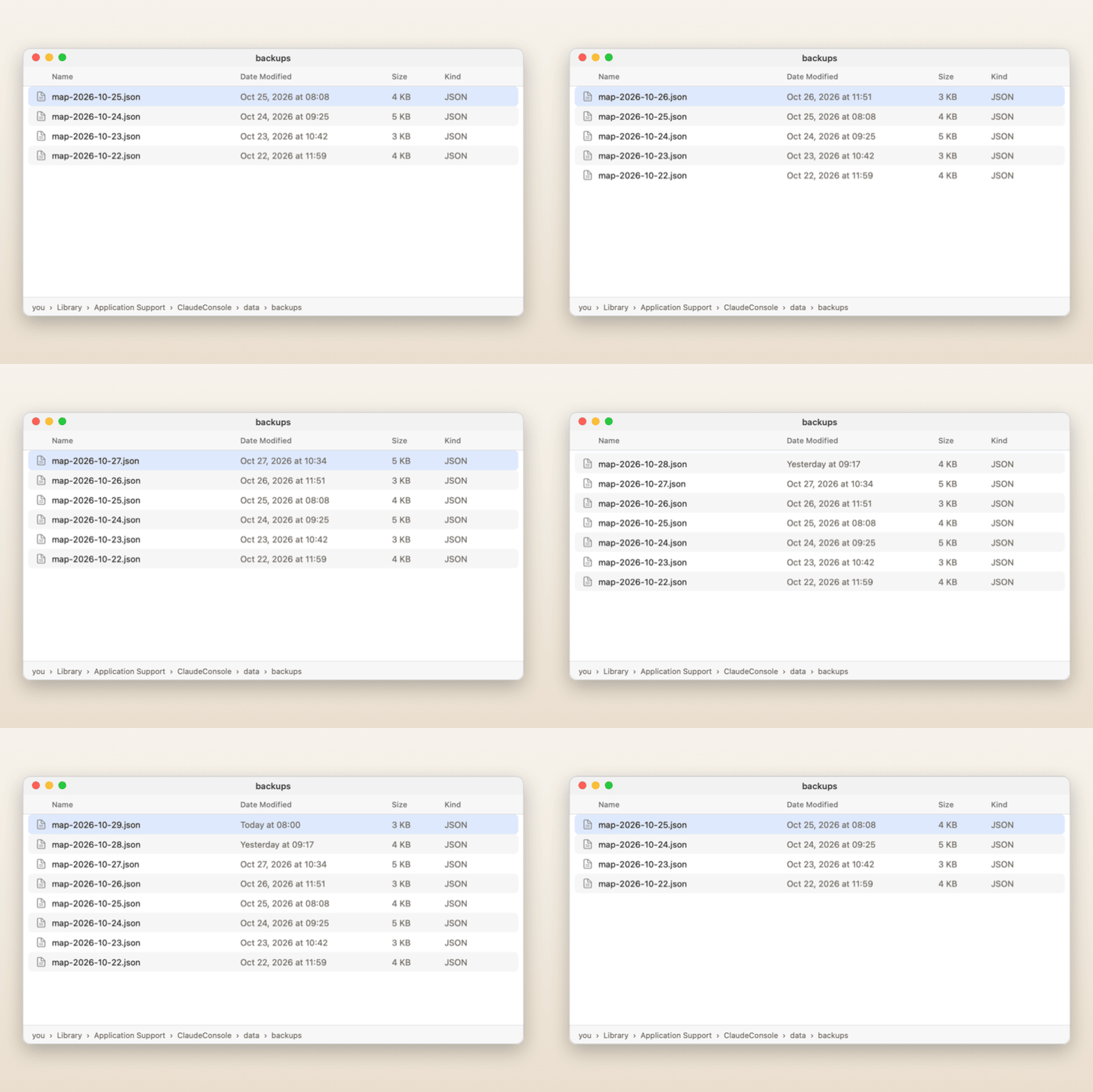
Daily backups每日备份A copy of your map every day, before your first change.每天第一次改动之前,自动存一份导图。
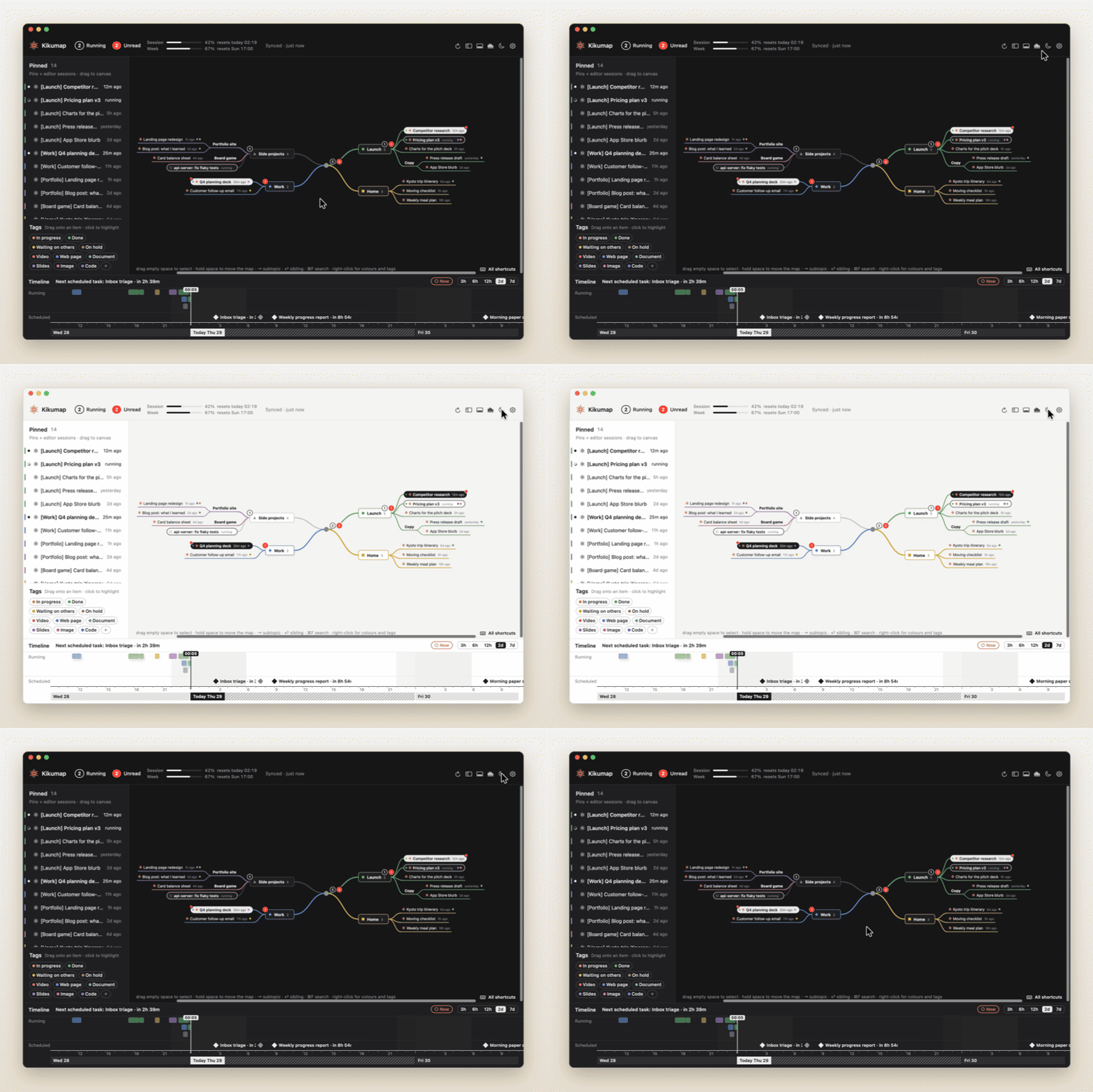
Light or dark浅色和深色Follows your Mac, or flip it with the moon.跟随系统,或者点月亮按钮切换。
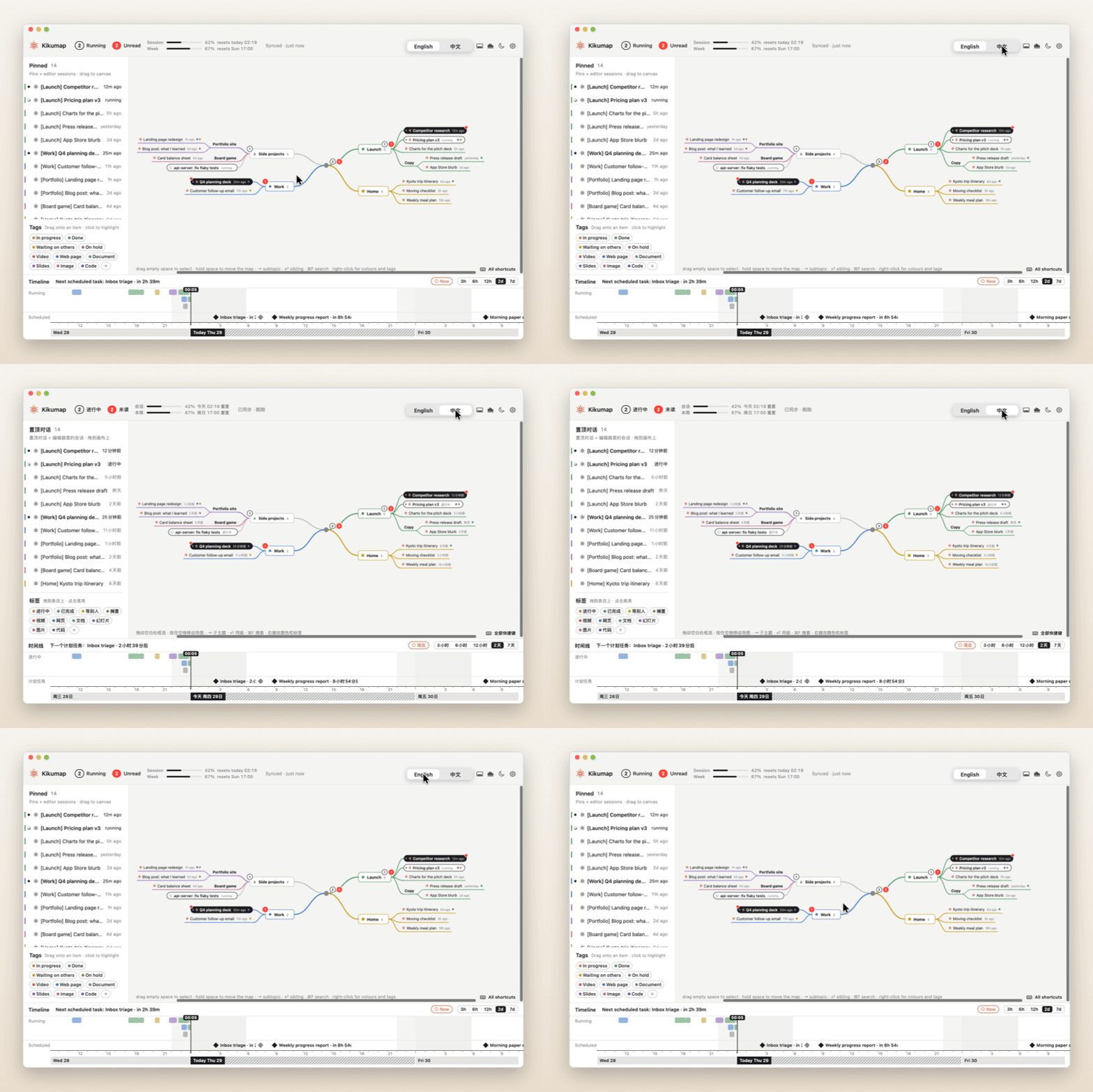
English · 中文Every label, menu and tag in either language.所有文字、菜单和标签,中英文都有。

Native, and featherlight原生,轻到几乎感觉不到

A real Mac app, not a web page in a window. It sits in your menu bar all day without you noticing.

真正的 Mac 原生应用,不是套了个窗口的网页。整天待在菜单栏里,你几乎感觉不到它。

2.5 MBThe whole download; about 4.5 MB installed, for Apple silicon and Intel.整个安装包 2.5 MB,装好约 4.5 MB,Apple 芯片和 Intel 通用。
SwiftWritten with AppKit. No Electron, no web view, no helper processes.用 AppKit 原生开发。没有 Electron,没有网页套壳,没有后台助手进程。
0Third-party dependencies. Build it from source in one step.第三方依赖。一步就能从源码编译。
Idle安静It waits for changes instead of polling, and stops drawing entirely when the map is hidden.靠系统通知等变化,不频繁轮询;导图窗口一隐藏,绘制就完全停下。

Stays on your Mac数据留在你的 Mac 上

Everything lives in ~/Library/Application Support/ClaudeConsole/. The only network requests are usage checks to api.anthropic.com, and only if you turn usage on; ChatGPT's usage is read from its own files. No sign-up, no tracking. And no surprise prompts: every macOS permission dialog comes after Kikumap has told you what it's for and you've clicked to go ahead.

所有数据都在本机 ~/Library/Application Support/ClaudeConsole/。唯一的网络请求是向 api.anthropic.com 查询用量,而且只在你开启用量功能之后;ChatGPT 的用量从它自己的文件里读。不用注册,没有统计追踪。也不会突然弹窗:每个系统授权弹窗,都会先告诉你要做什么,你点了同意才出现。

Finished with Claude's window closed, needs your approval窗口关着也知道做完了、等你批准

Optional. Read from the Claude app's notifications in Notification Center, read-only.

可选。只读通知中心里 Claude 的通知。

Full Disk Access (optional)完全磁盘访问(可选)
Running, unread and pinned chats在跑、未读、置顶的对话

Read from the Claude app's sidebar through macOS Accessibility.

通过 macOS「辅助功能」读 Claude 的侧边栏。

Accessibility辅助功能
Claude Code sessionsClaude Code 会话

Claude Code hooks, added to ~/.claude/settings.json when you click Connect. The old file is backed up.

点「连接」时写进 ~/.claude/settings.json 的 hooks,原文件会先备份。

No permission needed不需要权限
ChatGPT threadsChatGPT 对话

What the ChatGPT desktop app keeps in ~/.codex (its thread list and pins, which are unread, its plan usage), read-only. Nothing there is changed. Turn it off in Settings → Access.

ChatGPT 桌面 App 存在 ~/.codex 里的内容(对话列表和置顶、哪些未读、套餐用量),只读,不改任何东西。可在 设置 → 授权 里关掉。

No permission needed不需要权限
Usage and scheduled tasks (optional)用量和计划任务(可选)

Off by default. Turn it on and Kikumap reads the sign-in Claude Code keeps in your Keychain: read-only, never saved, sent only to Anthropic's usage API.

默认关闭。开启后读取 Claude Code 存在钥匙串里的登录:只读、不保存,只发给 Anthropic 的用量接口。

Keychain, only after you say yes钥匙串,你同意后才问

Install in a minute一分钟装好

  1. Download Kikumap.dmg下载 Kikumap.dmg

    Apple silicon or Intel, macOS 13 or later.

    Apple 芯片或 Intel,macOS 13 及以上。

  2. Drag it to Applications拖进「应用程序」

    Open the disk image and drag Kikumap onto the Applications folder.

    打开 DMG,把 Kikumap 拖到「应用程序」文件夹上。

  3. Allow the first launch允许第一次打开

    The app isn't notarized, so macOS blocks it once. Go to System Settings → Privacy & Security, scroll down and click Open Anyway.

    没有付费的苹果开发者签名,第一次会被拦住:去「系统设置 → 隐私与安全性」,往下滑,点「仍要打开」。

Prefer to build it yourself? Clone the repository and open Install.command. It compiles and signs on your Mac, so permissions survive reinstalls.

想自己编译?用 git 克隆仓库,打开 Install.command,在本机编译并签名,以后重装不用重新授权。

Questions常见问题

Is this made by Anthropic or OpenAI?这是 Anthropic 或 OpenAI 官方做的吗?

No. Kikumap is an independent open-source project, not made by or affiliated with Anthropic or OpenAI.

不是。Kikumap 是个人独立开发的开源项目,与 Anthropic、OpenAI 都无关。

Why is it a beta?为什么是测试版?

The Claude app has no public API, so Kikumap reads its window through macOS Accessibility; ChatGPT's threads come from the files its desktop app keeps on your Mac. When either app changes, parts of Kikumap may stop working until it's updated.

Claude App 没有公开接口,Kikumap 是通过 macOS「辅助功能」读它的窗口;ChatGPT 的对话来自它的桌面 App 存在你 Mac 上的文件。任一边改版后,部分功能可能要等 Kikumap 更新才能恢复。

Does it work with ChatGPT?支持 ChatGPT 吗?

Yes, from 0.9.5: the current ChatGPT desktop app (the one built on Codex). Everything you pin in ChatGPT (threads, and the threads in pinned projects) shows next to Claude's chats in ChatGPT's order, with running and unread as ChatGPT shows them; Codex sessions in VS Code show like Claude Code sessions, while they run and for 12 hours after; they count in the timeline and statistics, and the widget can show ChatGPT's usage too. Kikumap only reads what ChatGPT keeps in ~/.codex; no permission is needed.

支持,0.9.5 起:新版 ChatGPT 桌面 App(Codex 内核)。你在 ChatGPT 里置顶的东西(对话、置顶项目里的对话)都会和 Claude 的对话放在一起,顺序和 ChatGPT 一样,进行中、未读和 ChatGPT 里一致;VS Code 里的 Codex 会话和 Claude Code 会话一样,运行中和做完后 12 小时内显示;也算进时间线和统计,小组件也能显示 ChatGPT 的用量。Kikumap 只读 ChatGPT 存在 ~/.codex 里的内容,不需要任何权限。

Does it work with Claude Code?支持 Claude Code 吗?

Yes: in Terminal, VS Code and the Claude app's Code mode. Click Connect and Kikumap adds its hooks to ~/.claude/settings.json, backing up the old file first.

支持,终端、VS Code 和 Claude App 的 Code 模式都可以。点「连接」后,Kikumap 会把 hooks 写进 ~/.claude/settings.json,原文件会先备份。

What if I close Claude's window with ⌘W?用 ⌘W 关了 Claude 的窗口怎么办?

That only hides it: Claude keeps running and still sends its "finished" notifications, so Kikumap still marks chats as done and plays its sound. The live "running" spinner reads Claude's sidebar, so it waits until the window is back. Claude Code sessions aren't affected.

Claude 的 ⌘W 其实只是把窗口藏起来,App 还在运行,做完的通知照常发出,所以 Kikumap 照样标记做完、照样响提示音。只有「进行中」的转圈要读 Claude 的侧边栏,要等窗口回来再更新。Claude Code 会话完全不受影响。

Is it free?要钱吗?

Yes. It's MIT-licensed, with no account and no paid tier. If it saves you time, you can buy me a coffee.

免费。MIT 开源协议,不用注册,没有付费版。觉得好用的话,可以请我喝杯咖啡。

What does the name mean?名字是什么意思?

Kiku (菊) is Japanese for chrysanthemum: the little orange flower that spins in your menu bar while Claude works. Kikumap is the map that grows out of it.

Kiku(菊)是日语里的菊花,就是菜单栏里那朵 Claude 干活时会转的橙色小菊花;Kikumap 就是从它长出来的导图。